http://support.apple.com/kb/HT4057


Summary
If something is not working right, restarting or resetting iPad will likely solve the issue. Learn how to turn on/off (restart) and reset iPad.
Products Affected
To turn on
Press and hold the Sleep/Wake button until the Apple logo appears.
To turn off completely
Press and hold the Sleep/Wake button for a few seconds until the red slider appears, then slide the slider.
If you can't turn your iPad on or off
You may need to reset. Note: Only reset your iPad if it is no longer responding.
To reset
Press and hold the Sleep/Wake button and the Home button at the same time for at least ten seconds, until the Apple logo appears.
Additional Information
If you're experiencing an issue with iPad, see iPad: Basic troubleshooting.
iPad: Basic troubleshooting
Symptoms
This article provides basic iPad troubleshooting tips.
Products Affected
Resolution
First steps: Make sure you're up to date
- Verify you have installed the latest version of iTunes.
- Verify that you are connecting iPad to your computer using a USB 2.0 port.
- Make sure your iPad software is up to date: With your iPad connected to your computer, click "Check for Update" in the Summary section of iTunes.
- Charge your battery: Using the 10W USB power adapter that came with iPad, charge iPad for at least 20 minutes before further troubleshooting. If necessary, refer to "Charging the Battery" in the iPad User Guide.
If iPad won't turn on, or the display stops responding
Follow these steps, testing after each:
- Turn the iPad off and turn it on again. Press and hold the Sleep/Wake button on top of iPad for a few seconds, until a red slider appears. Then slide the slider. Then press and hold the Sleep/Wake button until the Apple logo appears.
- Reset iPad. Press and hold the Sleep/Wake button and the Home button at the same time for at least ten seconds, until the Apple logo appears.
If iPad doesn't appear in iTunes or you can't sync iPad
Follow these steps, testing after each:
- Disconnect other USB devices from your computer and connect iPad to a different USB 2.0 port on your computer (not on your keyboard).
- Turn iPad off and turn it on again. Press and hold the Sleep/Wake button on top of iPad for a few seconds, until a red slider appears. Then slide the slider. Then press and hold the Sleep/Wake button until the Apple logo appears.
- Restart your computer. Then reconnect iPad to your computer.
- Download and install (or reinstall) the latest version of iTunes.
For additional troubleshooting steps, refer to:
If you can't access email or the web using a Wi-Fi network
- Check the Wi-Fi signal strength using the icon in the status bar.
- If possible, move closer to the Wi-Fi router or hotspot.
- If you are not currently connected to a Wi-Fi network, locate and join a nearby network using Settings > Wi-Fi.
- If the issue persists, see this article for additional troubleshooting steps.
iPad Wi-Fi + 3G only: If you can't access email or the web using the 3G network
Follow these steps, testing after each:
- Check the cell signal indicator in the status bar at the top of the screen. If there are no bars, or if it says "No service," try moving to a different location. If you're indoors, try going outdoors or moving closer to a window.
- Check to make sure you're in an area with network coverage. Go to your carrier's website to see network coverage areas.
- Make sure airplane mode isn't on. From the Home screen choose Settings, then turn Airplane mode off.
- Turn iPad off and turn it on again. Press and hold the Sleep/Wake button on top of iPad for a few seconds, until a red slider appears. Then slide the slider. Then press and hold the Sleep/Wake button until the Apple logo appears.
- There may be an issue with your wireless service. Call your carrier or go to your carrier's website.
- Restore the iPad software. See Backing up, updating, and restoring your iPad software or see "Updating and Restoring iPad Software" in the iPad User Guide.
If iPad still won't respond after you restore it
Follow these steps, testing after each:
- If you receive an alert in iTunes while restoring your iPad, refer to this article for instructions on how to resolve common issues with updating and restoring.
- If you cannot restore your iPad in iTunes, or if iTunes does not recognize the device, refer to this articlefor instructions on restoring using recovery mode.
iPhone, iPad, iPod touch: How to restart the Apple Mobile Device Service (AMDS) on Windows
Symptoms
If an iPhone, iPad, or iPod touch is not recognized in iTunes on Windows, the Apple Mobile Device Service (AMDS) may need to be restarted. Alternatively, you may see the following error when connecting your device:
"This iPod cannot be used because the Apple Mobile Device Service is not started."
Products Affected
Resolution
This document explains how to restart the Apple Mobile Device Service on Windows XP, Windows Vista, and Windows 7. If you have a Mac, follow the steps in this document.
Collapse All Sections | Expand All Sections
Restart the Apple Mobile Device Service (AMDS)
Windows XP
- Close iTunes and disconnect the iPhone, iPad, or iPod touch.
- Choose Start > Control Panel.
- Inside the Control Panel, open Administrative Tools.
- Open Services.
- Select Apple Mobile Device and click Stop the service as shown below:
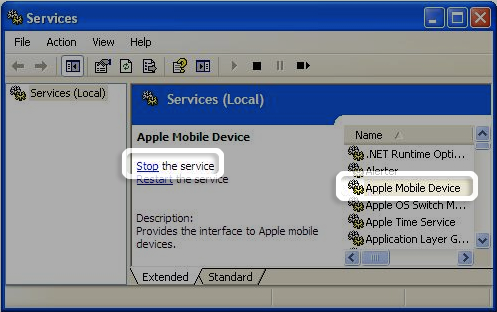
- After the service has stopped, click Start the service.
- After the Apple Mobile Device service has started again, open iTunes and connect the device.
Windows Vista or Windows 7
- Close iTunes and disconnect the iPhone, iPad, or iPod touch.
- Click the Windows Start button
 .
. - In the Start Search field type Services.
- In the Programs section of the search results, Click "Services".
- Select Apple Mobile Device and click Stop the service as shown below:
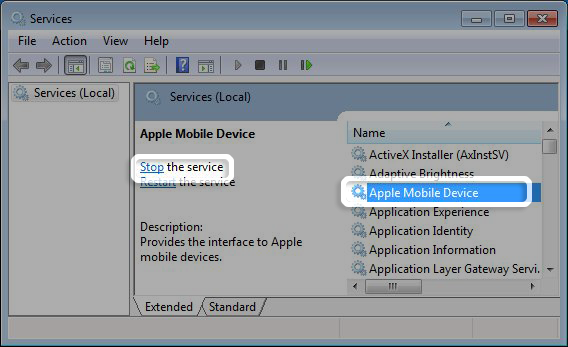
- After the service has stopped, click Start the service.
- After the Apple Mobile Device service has started again, open iTunes and connect the device.
Set the Apple Mobile Device Service Startup type to Automatic
Windows XP
- Close iTunes and disconnect the iPhone, iPad, or iPod touch.
- Choose Start > Control Panel.
- Inside the Control Panel, open Administrative Tools.
- Open Services.
- Right-click on Apple Mobile Device and click Properties in the shortcut menu.
- Set the Startup type pop-up menu to Automatic and click OK:
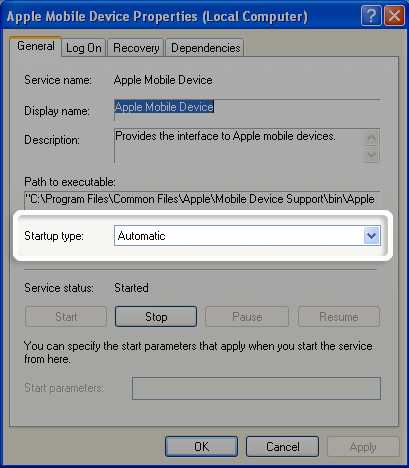
- Restart the computer.
- Open iTunes and connect the device.
Windows Vista or Windows 7
- Close iTunes and disconnect the iPhone, iPad, or iPod touch.
- Click the Windows Start button .
- In the Start Search field type Services.
- In the Programs section of the search results, click Services.
- Right-click on Apple Mobile Device and click Properties in the shortcut menu.
- Set the Startup type pop-up menu to Automatic and click OK:
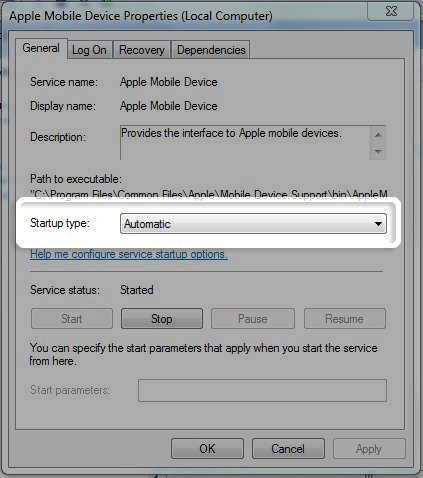
- Restart the computer.
- Open iTunes and connect the device.
Remove and reinstall iTunes and AMDS
If the issue continues after restarting AMDS, then you'll need to remove and reinstall AMDS and iTunes.
- Completely uninstall both AMDS and iTunes. Click the appropriate links below for steps:
- Restart the computer.
- Download and install (or reinstall) the latest version of iTunes from www.apple.com/itunes. Installing iTunes will also install AMDS.
- Restart the computer.
- Start iTunes and connect iPhone or iPod touch. The device should be recognized properly in Windows.
--
"Life... is like a grapefruit. It's orange and squishy, and has a few pips in it, and some folks have half a one for breakfast." ~Douglas Adams
---
Yesterday morning I pressed the startup button on the top of my ipad, but it did not wake up, I tried the round button at the bottom with no joy. Help!
When I last used the ipad the previous evening, it was on about 23% battery, so I plugged it in to recharge overnight.
Please send no flowers, but any advice, before a return to the Apple Store funeral home would be appreciated
